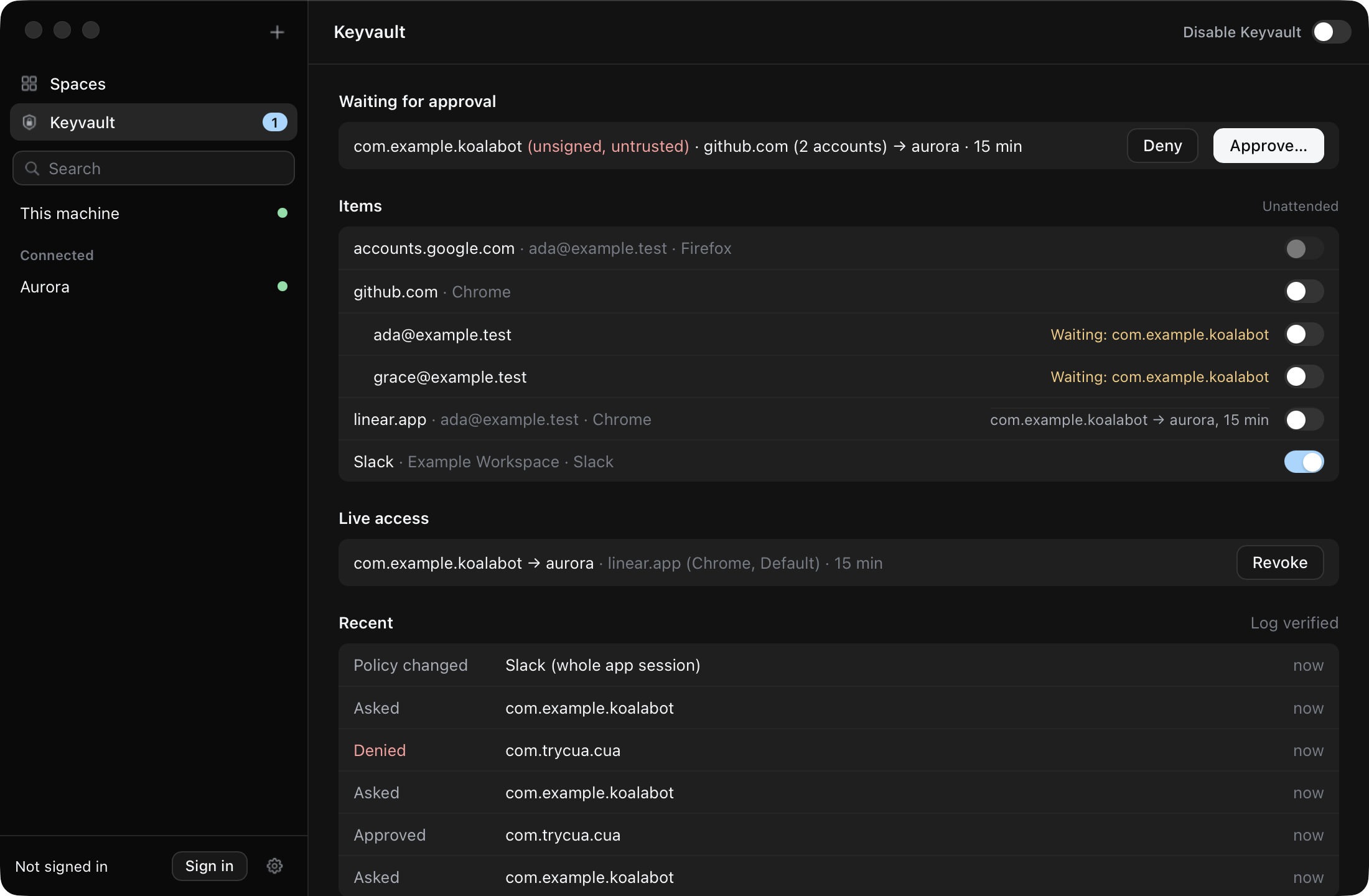
The Cua Keyvault is a password manager for what teleport moves: cookies, localStorage values, passwords and files, grouped by the app they came from. Every item is locked until you allow unattended access. Search, select several, lock, unlock or delete them, approve requests and turn it off from the Keyvault page.
The Keyvault is where Cua keeps what teleport moves into Spaces and the saved
passwords agents sign in with. It works like a password manager, grouped by the
app each secret came from (Chrome, Slack, Arc). Inside an app, every secret is
its own item: a cookie, a localStorage value, a password, or a file for
everything else (bookmarks, session files, app state). It lives in the Cua
daemon, encrypted on disk. Apps and agents never read it: they ask, you
approve, and the daemon delivers into the Space.
Open Keyvault in the Cua Spaces sidebar.
Section
What it shows
Waiting for approval
Requests from apps and agents: the verified caller, what moves, where and for how long. Approve asks for Touch ID or your password.
All Items
Items grouped by app, then by site, with the files of an app together. Each item shows its type, its key, its domain and when it was last saved in grey, and a lock. Select items, a site or a whole app to lock, unlock or delete them together. Search matches a domain, a key, an app or a type. Names stay hidden until you confirm with Touch ID (Show Items).
Live access
Grants, unattended rules and copies delivered to Spaces, with Revoke, Remove and Wipe.
Recent
Decisions from the audit log, and whether its hash chain verifies.
Settings, Keyvault
Who confirms (the Cua daemon, with Touch ID), how the vault unlocks, whether this app and the daemon are verified as Cua, the prompt you can turn back on after Never ask again, and whether site icons may load from Google.
An item is keyed within its app: a file by its path, a cookie by its host,
name and path, a localStorage value by its origin and key, a password by its
origin and username. Saving the same app again (teleporting Chrome twice with
Save to Keyvault) updates the items it already holds by that key and never
duplicates them. A saved item keeps its lock and its place; only its value and
its last-saved time change. A big file is kept as an encrypted blob rather than
inside the item.
Apps show their own icon, looked up once per app version and kept in a cache. A
site shows the icon your browser already had for it: Cua reads it from the
browser's local favicon store when it saves the site's items (the file is
copied first, so the browser is never touched) and keeps it in the vault as
non-secret metadata, visible only while the list is open. When the browser had
none, Cua can ask Google's favicon service for it, sending only the site's
registrable domain (never a path, an item or a name), a few at a time as rows
appear. Answers, including "none", are cached on disk so a domain is asked at
most once a week. Turn this off with Load site icons from Google in
Settings, Keyvault; the globe stands in for any site without a local icon.
A locked item needs your approval for every use. Clicking the lock
unlocks it, which allows unattended access: any agent with access to the
Cua Spaces MCP can have that key written into your connected Spaces without
asking each time. The secrets are not sent to the agent; they are delivered
into the Space. Before Touch ID, a prompt explains this with Deny,
Allow and Never ask again. Never ask again skips the explanation
from then on (Touch ID is still asked) and can be turned back on in Settings,
Keyvault.
Select several items, a site or a whole app and unlock them with one prompt and
one Touch ID. Locking an item again, or deleting it, ends the access it gave.
Deleting items also wipes any copy delivered to a Space. Identity providers
(Google, Microsoft, Apple, Okta) always ask and cannot be unlocked.
The teleport review is the same list. For a browser you choose which sites to
send, with counts per site, instead of the whole profile; it starts from what
you sent last time to that Space, or from the sites that look like they keep a
sign-in. When the app has saved items, the review can send those instead of
reading the app again, so macOS does not ask for Keychain access.
Import your browser's saved passwords, one item per login:
cua keyvault import-passwords --browser chrome
They stay sealed in the vault and are never delivered to a Space as files.
An agent uses one only through site login: you
approve the sign-in, and the Keyvault types it into the page on the saved
login's own origin. Chrome on macOS and Linux is supported.
Passwords go into a Space's browser only when you tick Also send saved
passwords in the teleport review (it is off unless you do, and never
remembered). Each one is re-encrypted for the browser in the Space with that
browser's own key and written beside the logins it already has, so the browser
must have been opened once there. An agent can never have a password delivered,
only used through site login.
For Chrome and the other Chromium browsers, for Firefox, and for Chromium-based
desktop apps (Slack, Discord, Visual Studio Code, Notion) each of these is its
own item:
every cookie, with every attribute the browser keeps (creation and update
times, priority, source scheme and port, same-site, a partitioned cookie's
top-level site). A partitioned cookie stays partitioned and is a different
item from the same name without a partition;
every localStorage value, read from the browser's own store and written back
into the Space's while its browser is not running;
saved passwords, only when you tick them in the review (never by default).
A Chromium app's cookies and passwords decrypt the same way on macOS, Linux and
Windows: macOS through the app's own Keychain item, Linux through its fixed or
keyring-backed key, Windows through the key Local State keeps, itself
protected by Windows DPAPI for your account. Firefox's cookies and localStorage
are never encrypted at rest; its saved passwords decrypt with the profile's own
key4.db master key, and a profile protected by a Firefox master password is
refused rather than guessed at.
Chrome's Windows app-bound encryption (v20, Chrome 127+) keeps a cookie or
password readable only by Chrome itself. Those are listed in the review,
greyed, with that reason, and are never sent; the rest of the site still is.
Everything else is saved as a file, by its path: preferences, bookmarks, the
open tabs and session state, session storage, extensions, history and, for
Firefox, everything under its profile that is not cookies, localStorage or
logins. A cookie or value that cannot be read as an item is not silently
dropped: it stays a file or is listed as unavailable.
The Keyvault holds a browser's cookies one item each, decrypted from Chrome's
Safe Storage-encrypted store and kept sealed like any other item. Unlike a
saved password, a delivered session's
cookies are meant to be used: when an agent's grant or unattended rule
delivers one into a Space, the Space's own Chrome gets its own freshly
created (or existing) Safe Storage key, and the cookies are re-encrypted
under THAT key before they land in its Cookies database -- the source
Mac's key is never copied anywhere. This capture path is reached today by
the teleport_app and teleport_browser_session MCP tools (an agent's
request, with your approval); the plain Teleport an app picker still
moves a session directly, without the Keyvault, and a first-party
cua keyvault import-session command for a human to use directly is tracked
as follow-up work.
Every request, approval, denial, delivery and sign-in is in the Keyvault's
hash-chained audit log (Recent on the Keyvault page). Site login records
login.request, login.authorize, login.fill and login.denied, with the
agent, the site's origin, the Space and a masked username. Passwords are never
logged.
Disable Keyvault stops every teleport, import and approval at once and
invalidates outstanding grants. A teleport_app request from an agent is
refused with disabled. Turning it back on asks for Touch ID.
The Keyvault only shows items to apps signed by Cua. A build signed by anyone
else sees why, not the items. The vault key is wrapped by the macOS Keychain or
a passphrase; this build does not use a Secure Enclave key, which needs a
provisioning-profile-signed app.
First run: Set up Keyvault creates the vault and shows a recovery key once.
Store it somewhere safe; Cua does not keep a copy.
How the vault key is protected depends on the Cua daemon:
Daemon
Setup
Unlock
The signed Cua daemon on macOS
Touch ID; the key stays in your login keychain
Automatic, or Unlock
Any daemon that cannot use the OS key store
A passphrase of at least 12 characters, typed twice
The passphrase
The page asks the daemon which one applies before anything else, so a setup
it cannot do never asks for Touch ID. A passphrase goes only to the daemon,
over the verified Keyvault socket; the apps never log or keep it. The
recovery key also unlocks the vault.
The same from a terminal:
cua keyvault statuscua keyvault init # the OS key store (signed daemon only)cua keyvault init --passphrase # prompts twice; never an argumentcua keyvault unlock --passphrasecua keyvault lock
Scripts can pass the passphrase on stdin with --passphrase-stdin. See the
cua keyvault reference.
A debug cua daemon can trust a development build of the app instead of
Cua's signature. It never touches the login keychain, so its vault is
passphrase-only:
# The app build (and, for the CLI, a debug cua) by cdhashexport CUA_KEYVAULT_TEST_REQUIREMENT="$(apps/cua-spaces-macos/scripts/dev-keyvault.sh \ "<path>/Cua Spaces.app" libs/cua/target/debug/cua)"cua daemon start --foreground
Launch the app built with a debug libcua_sdk.dylib (CUA_SDK_DYLIB in
apps/cua-spaces-macos/scripts/build-app.sh) and
CUA_KEYVAULT_ALLOW_UNVERIFIED_DAEMON=1, which lets a debug client talk to
the unsigned daemon. Set the same variable for a debug cua keyvault.
Release builds ignore both variables.